The Meshtastic app is the most common way to use the kit’s LoRa devices. This reference sums up the screens and the meaning of the statuses and icons, on Android and iOS.
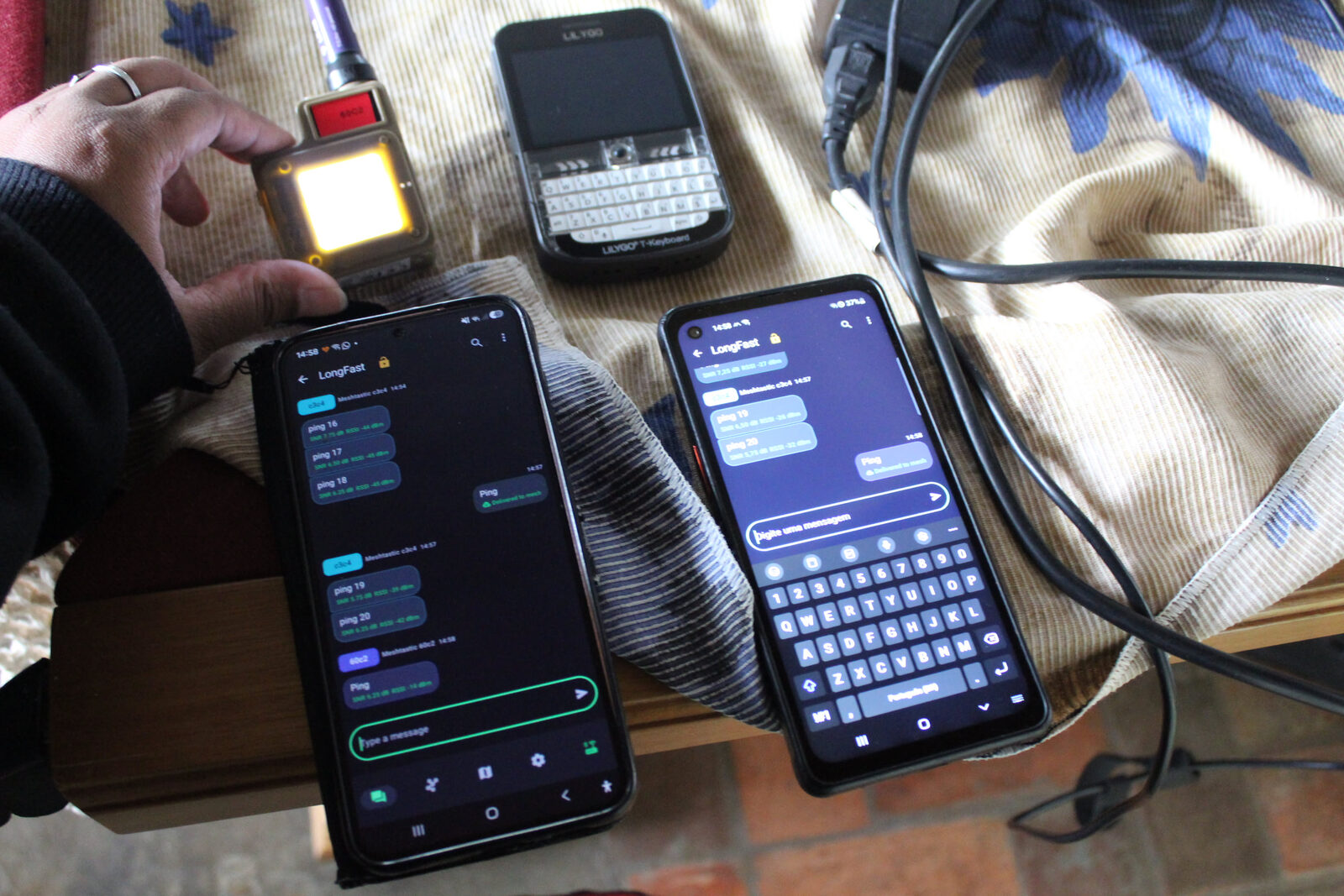
Main screens
| Screen | What it is for |
|---|---|
| Connect | Finding and pairing the device over Bluetooth or USB cable |
| Messages | Conversations on channels and direct messages to a device |
| Nodes | List of the devices your network has heard, with signal, hops and battery |
| Map | Position of the devices that share their location |
| Settings | Region, radio mode, channels, name, role and modules |
On Android, settings changes only reach the device after you tap Send. On iOS, the radio settings are under Settings › Radio Configuration.
Message status on Android
| Status | What it means |
|---|---|
| Sending… | The message is in the queue or has already been handed to the device |
| Delivered to mesh | Another device relayed the channel message |
| Delivered to recipient | The destination device confirmed the direct message |
| Relayed, not confirmed by recipient | Someone relayed it, but the destination did not confirm |
| Error | The message failed; tap to see why |
The most common error reasons are: no route to the destination, airtime limit reached, different channel or key and message too large.
Message status on iOS
| Icon | What it means |
|---|---|
| Orange clock | Sending |
| Grey tick | Delivered to the mesh or to the recipient |
| Orange exclamation mark | Relayed without confirmation or delivery failure; the app offers to try again |
| Red X | Different channel or key, message too large or not authorised |
Without confirmation, the device tries again up to 3 times for a channel message and up to 5 for a direct message.
Channel padlocks (Android)
| Padlock | What it means |
|---|---|
| Green, closed | Channel with a secure key |
| Yellow, open | Channel with no key or with the default key, which is public |
| Red, open | The channel is sharing the precise location |
In the kit, the group’s channel should appear with the green closed padlock. Yellow means that anyone can read the messages.
Node list
| Data | What it shows |
|---|---|
| Hops | How many relays the message made before arriving. Zero means the device was heard directly |
| SNR and RSSI | Quality and strength of the signal. They only appear for devices heard directly |
| Last heard | When the device was last heard. On Android, it turns green if this was in the last 2 hours |
| Battery | The device’s charge, if it sends telemetry data |
| Role | Client, tracker, router and others (on iOS) |
| Star | Devices marked as favourites |
On iOS, a signal meter with up to three bars sums up the signal quality: good, fair, bad or none.
Useful actions
| Action | Where |
|---|---|
| Trace Route | Tap and hold a device’s name in the node list. Shows the path there and back, with up to 8 hops. Can be requested once every 30 seconds |
| Share the channel | On Android, in Settings › Channels. On iOS, in Settings › Share QR Code. The code carries the channel, the key and the radio settings |
| Read someone else’s channel | Scan the QR code and choose to replace the channels or add them. In the kit, use replace |
Never photograph or share the screen with the group channel’s QR code: it contains the key.