Use this guide to find out how far the base’s radio network reaches across an area, and to set up the link between that network and the internet. This is the setup we used in the test of 15 October 2026, during the field work in Rio Grande do Sul.
Who: at least two people, one at the base and one on the move · Time: about 2 hours
Equipment: one fixed sender node at the base, one or more receiver nodes at the base, one receiver node to take into the field, phones with the Meshtastic app, internet at the base (in the test, Starlink), power for the base, an offline map and the range sheet.
Before you start
- All nodes on the same region, modem preset and channel, checked side by side.
- Charged batteries and enough power at the base for the length of the test.
- Route agreed: directions, stopping points and return time.
- Scheduled check-in agreed: for example, a message or call every 15 or 20 minutes.
- The person on the move has an alternative way to make contact and has the tracker turned on.
Set up the base
- Place the sender node at the highest safe point of the base, away from metal walls.
- Turn on Range Test on the sender, with a 60-second interval.
- Leave at least one receiver node at the base with Range Test on, to confirm the sender is transmitting.
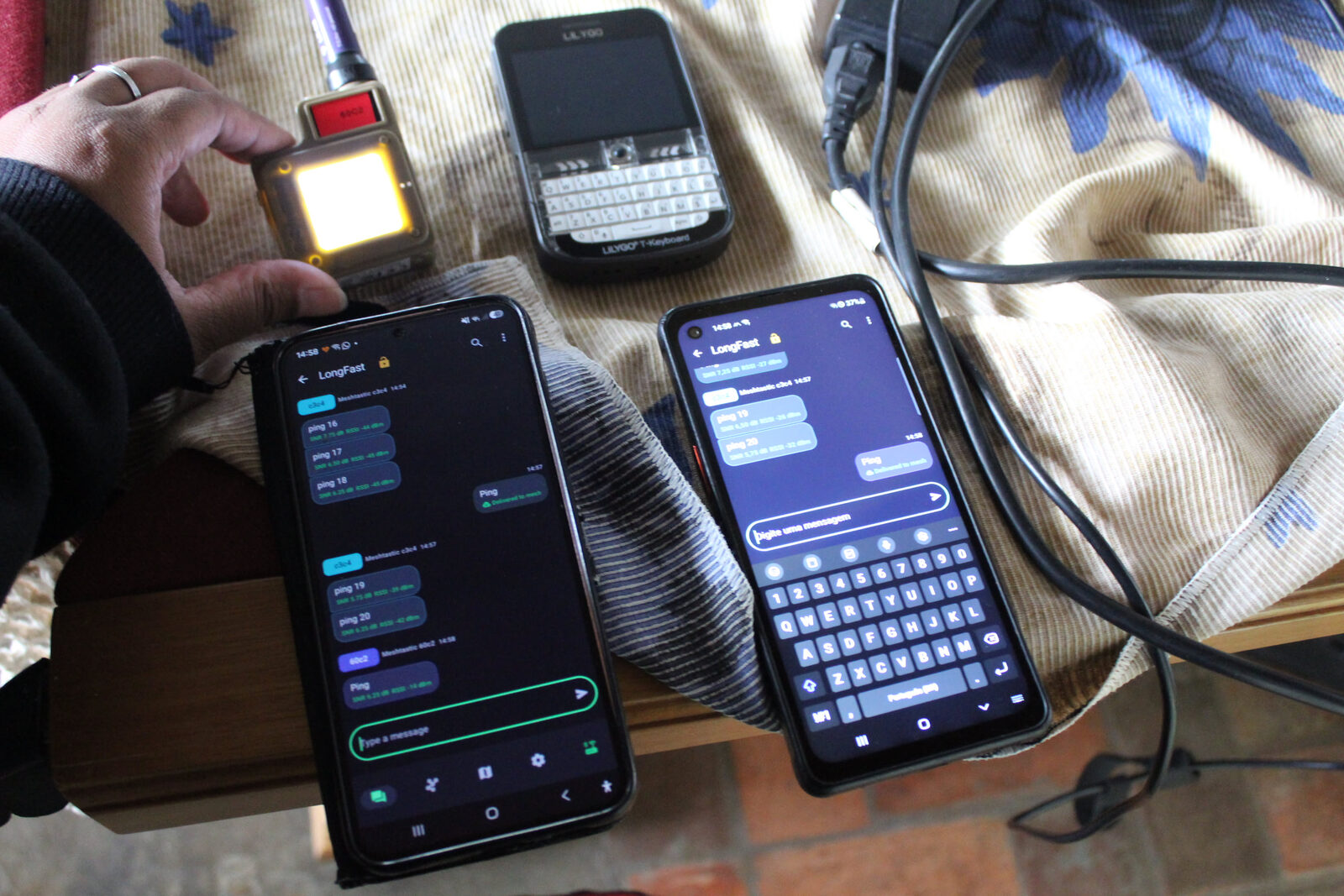
- Pair one of the base receivers with a phone connected to the internet. In the test, it was the LilyGO T-Deck, connected over Bluetooth to a phone on the Starlink Wi-Fi network.
- Write down the height and position of each device on the sheet.
Do the route
- The person in the field leaves with the receiver node, on foot or by car, preferably paired with a phone to see the messages and record the position. By car, the driver does not operate the device: someone else takes notes, and stops to record are made in a safe place.
- At each stop, write down the time, place and whether the test message arrived. If the app shows RSSI and SNR , write those down too.
- When messages stop arriving, mark the point as the limit and go back a few metres to confirm.
- On the SenseCAP T1000-E, two quick presses of the button send the position to the network, according to the device page in the Meshtastic documentation. Use this so the base can record where the person is.
- Repeat in other directions, especially towards low areas, slopes and valley entrances.
Bridge to the internet
There are two ways. Start with the first; the second needs preparation in advance.
Way 1: a person makes the bridge
- Decide who, at the base, watches the phone connected to the receiver node.
- For each relevant message, that person writes down the time, origin and content in the bridge log.
- Pass the message on through the channel agreed with the response coordination, for example a group of mobilisation teams (response teams, search and rescue, volunteers, community groups and humanitarian aid organisations).
- Do not pass names, addresses or the situation of affected people to open groups.
Way 2: the app makes the bridge automatically (optional)
- Before going into the field, set up your own MQTT server instead of the public one.
- On the node paired with the phone, turn on the MQTT module with the option to use the phone’s connection (Client Proxy), as described in the Meshtastic documentation.
- Turn on encryption. The documentation warns that an unencrypted channel exposes messages and locations on the internet.
- Test with a message without personal data before using it in a real situation.
Wrap up
- Turn off Range Test on all nodes.
- Export the records and gather the field notes.
- Fill in the range sheet and mark the limits on the map.
Done when: the map shows, for each direction, how far messages reached, and the coordination received over the internet at least one message that came from the radio network.
Precautions
- Nobody leaves the base without a return time and a scheduled check-in.
- In floods, do not cross water to test range. In fires, do not get close to the smoke.
- The T1000-E uses a radio that does not receive messages from older Meshtastic devices with an SX127x chip unless they pass through another node, according to the documentation. Check the models you use.